 SeekCast
SETUP GUIDE
From your phone
to your TV.
The steps below apply once SeekCast is available on your supported TV.
Not in the store yet. SeekCast 0.3.1 has been submitted for US Samsung TV review. No public installation or launch date is available. Follow launch status →
Before you start
- A Samsung TV that can install SeekCast in its approved store region.
- A phone video app with a DLNA casting option. An iPhone alone does not establish compatibility.
- Your phone and TV connected to the same home network, with local device discovery allowed.
- A video source your TV can play and internet access for trial activation.
Check compatibility and video limitations before planning a purchase.
1. Open the receiver on your TV
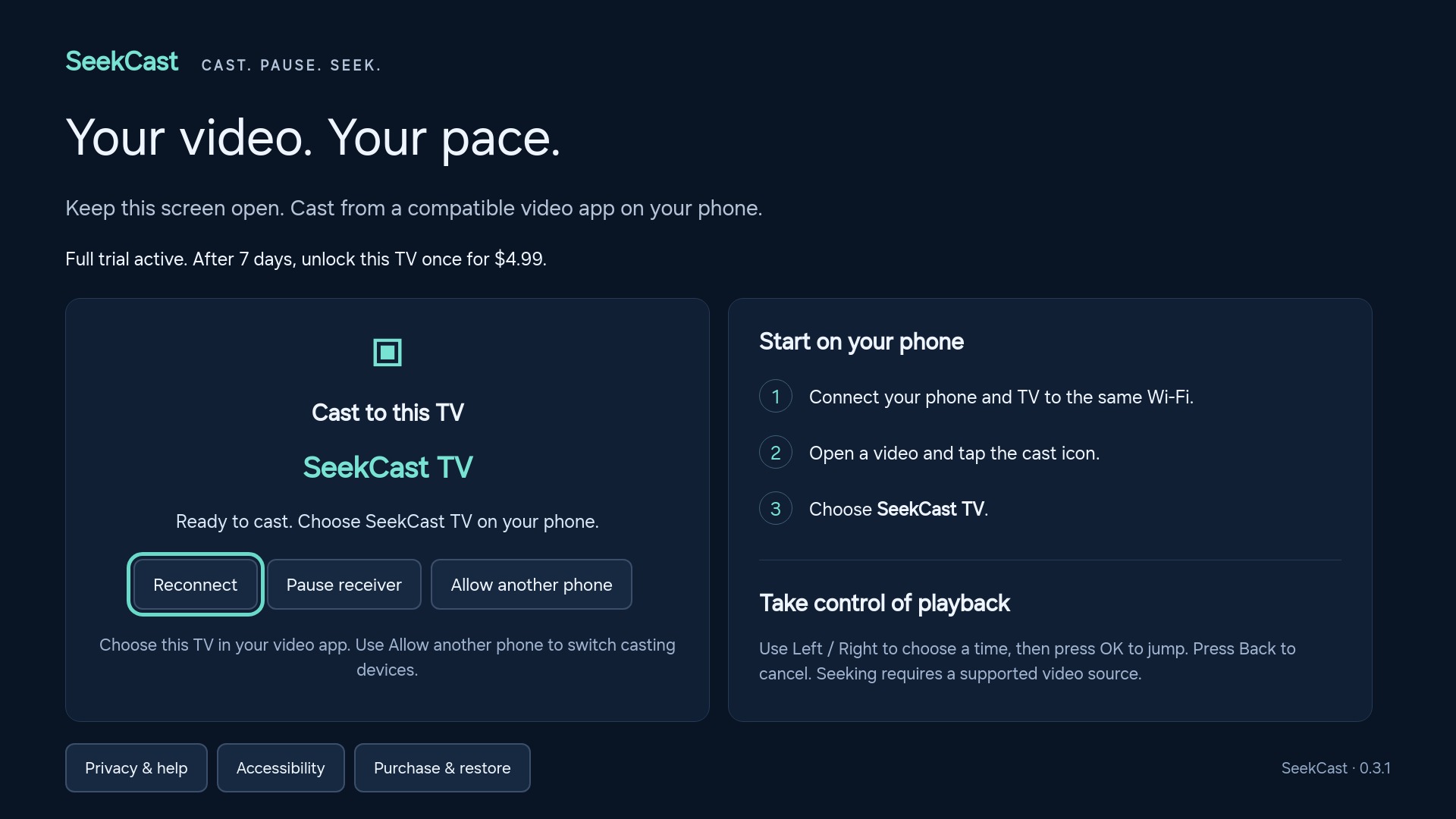
After the release is confirmed, search for SeekCast in the TV's Apps store. Install and open it. Keep the receiver screen open while you start casting. The device name to look for on your phone is SeekCast TV.
2. Choose a video on your phone
In a compatible DLNA app, open your video and use that app's casting or device menu. Select SeekCast TV. This is not the iPhone Control Center Screen Mirroring menu, which uses a different protocol.
The TV receives the source from the phone app and plays it directly. You do not need to type a video address on the TV or install a SeekCast phone companion.
3. Control playback
Use Play/Pause on the TV controls or in the compatible phone app. On the TV remote, use Left/Right to preview a position, OK to seek and Back to cancel the preview. The on-screen controls also include ten-second skips.
Seek support depends on the actual video. Try your intended phone apps and sources during the seven-day trial. Read the seeking guide if a jump does not work.
If SeekCast TV is missing from the phone's device list
- First check the release status. The unreleased app cannot be installed from the store yet.
- Confirm SeekCast is open on the TV, with the receiver ready. The built-in TV device name is a different receiver.
- Keep the phone and TV on the same home network. Guest networks or device isolation can prevent discovery, even when both have internet access.
- Check your phone app's local network permission and refresh its device list. If a VPN blocks local access, use its local-network option or disconnect it temporarily.
- Use the TV app's Reconnect action. If switching senders, use Allow another phone.
Need a hand?
Email hzlinj@126.com with the TV model and year, phone app name and what happened. Share a public sample only if you have permission; we do not need passwords, private video URLs or recovery codes.
Check supported setups →